
Download Google Photos – free cloud backup, AI photo organizer
Overview: Why Google Photos Stands Out in the Crowd
Google Photos is a free multimedia app that has become the go‑to image gallery for millions of Android, iOS, Windows and macOS users. Its core promise is simple yet powerful: automatically organize, back up, and enhance your photos and videos with the help of Google’s AI engine. When you install Google Photos, every snap you take—or any image stored on your device—can be safely uploaded to the Google Cloud, freeing up local storage while keeping your memories instantly searchable.
The magic happens behind the scenes. By analyzing the visual content of each file, Google Photos creates smart albums, tags locations, dates, and even recognizable objects like “dog,” “pizza,” or “sunset.” This means you can locate a specific moment with a single keyword, without manually curating folders. In addition to its robust organization tools, the app offers a modest suite of editing features, including the new Magic Editor, Photo Unblur, and Magic Eraser, allowing you to polish images without needing a separate desktop editor.
While the editing toolbox isn’t as extensive as professional software, it’s more than enough for casual users who want quick enhancements. Google Photos also supports the creation of animated GIFs, collages, and stories, turning everyday moments into share‑ready content. The app integrates seamlessly with Google Drive, Google One, and legacy Picasa albums, consolidating all your visual media under a single, cloud‑first umbrella.
Though the sheer volume of synced images can feel overwhelming at first, the material‑design interface keeps navigation intuitive, and the AI‑driven suggestions gradually learn your preferences, making the experience smoother over time. Whether you’re a busy parent, a travel enthusiast, or a professional photographer looking for an effortless backup solution, Google Photos provides a secure, free, and constantly updated platform that keeps your memories safe and searchable.
Key Features That Make Google Photos a Must‑Have Tool
- Unlimited Free Backup (High‑Quality) – Store an unlimited number of photos and videos at reduced resolution without counting against your Google Drive quota.
- Original‑Quality Backup – Preserve full‑resolution files for a fee via Google One storage plans.
- AI‑Powered Automatic Organization – Smart albums, location grouping, and object recognition let you search by “beach,” “birthday,” or “cat.”
- Magic Editor Suite – Includes Magic Eraser, Photo Unblur, and the newest Magic Editor that can reposition subjects and fill gaps automatically.
- Built‑In Editing Tools – Adjust brightness, contrast, apply filters, crop, and create GIFs, collages, and stories.
- Cross‑Platform Sync – Seamlessly syncs across Android, iOS, Windows, macOS, and the web.
- Shared Albums & Collaborative Editing – Invite friends or family to add to shared albums in real time.
- Privacy Controls – Choose which folders are backed up, manage who can view shared links, and adjust AI data usage.
- Integration with Google Services – Direct access to Google Drive, Google Maps (location tags), and Google Assistant for voice‑activated searches.
- Offline Access & Smart Caching – Recent photos stay cached for quick viewing even without internet.
Installation, Usage & Compatibility: Getting Started on Any Device
Step‑by‑Step Installation Guide
Downloading Google Photos is straightforward. On Android devices, open the Google Play Store, search for “Google Photos,” and tap Install. iOS users head to the App Store, locate the app, and tap Get. For Windows or macOS, navigate to the official Google Photos web portal (photos.google.com) and sign in; a desktop backup client (Google Drive for Desktop) can be installed to sync local folders automatically. Once installed, launch the app and sign in with your Google account.
The first launch will prompt you to choose a backup quality (High‑Quality vs. Original), select which device folders to sync, and enable cellular data usage if desired. You can always revisit these settings later in Settings → Backup & sync.
How to Use the Core Functions
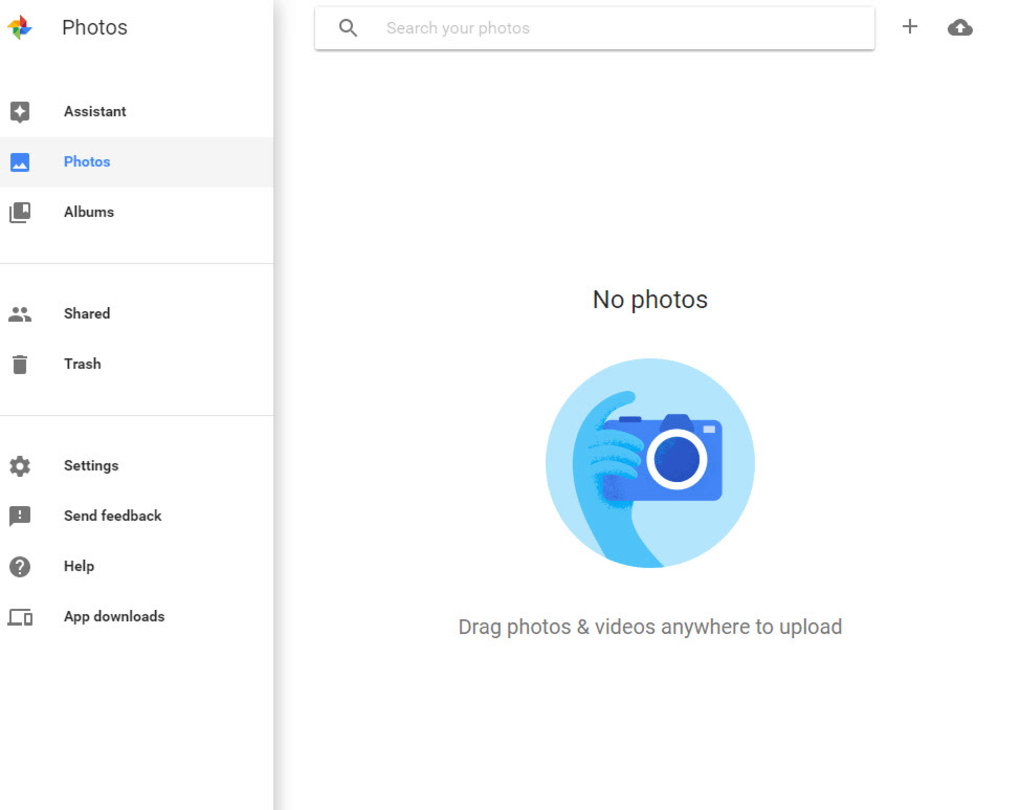
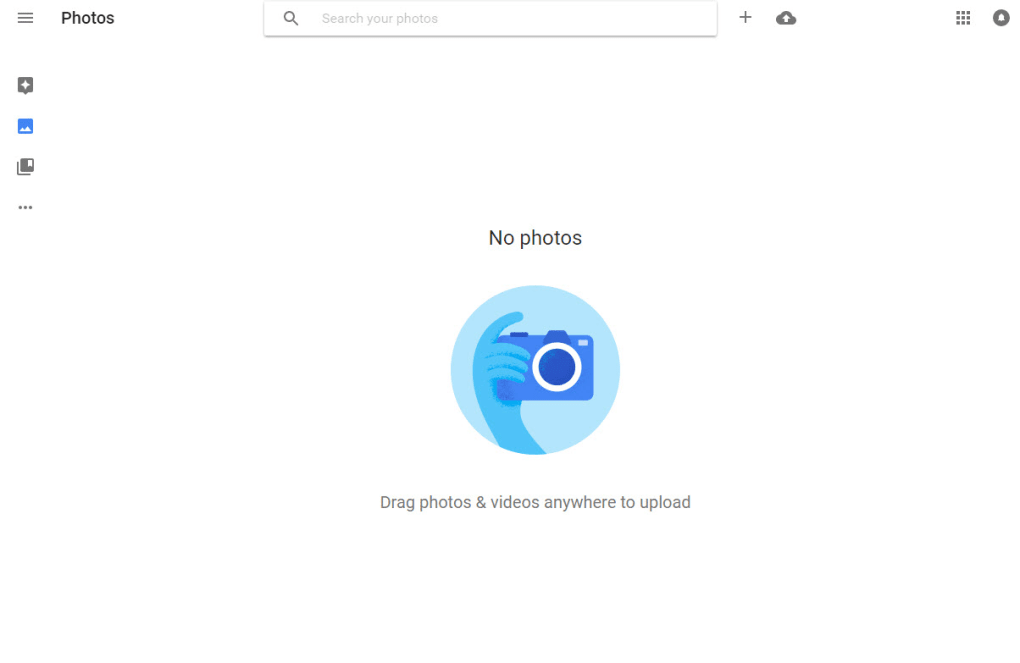
After the initial sync, Google Photos populates your library with all backed‑up media. The home screen displays a timeline view, while the Search bar lets you type keywords like “mountain,” “birthday,” or “2023” to jump instantly to relevant images. Tap any photo to open the Editor where you’ll find the Magic Editor tools.
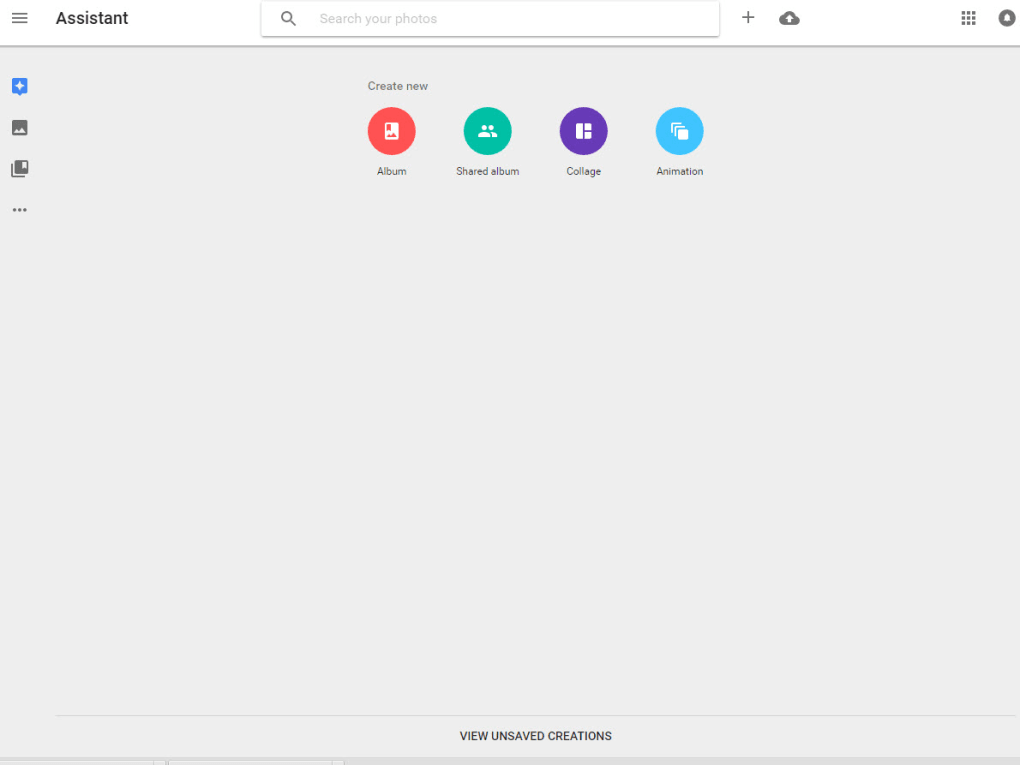
To create a shared album, select multiple photos, tap the + Create button, choose Album, then toggle Share and copy the link or invite collaborators via email. For quick backups, enable “Back up & sync” in settings; the app will automatically upload new media whenever you’re on Wi‑Fi (or cellular, if you allow it). The Assistant tab surfaces suggested creations—movies, animations, collages—based on recent uploads, allowing you to share polished content with a single tap.
Supported Operating Systems
Google Photos runs on Android 5.0 and higher, iOS 12.0 and higher, Windows 10 (via Google Drive for Desktop), and macOS 10.14 and higher (also via Google Drive for Desktop). The web version works on any modern browser, providing full access to your library without installing additional software.
Pros, Cons, and Frequently Asked Questions
Pros & Cons
- Pros
- Free unlimited high‑quality backup for most users.
- Powerful AI search that saves time.
- Cross‑platform sync keeps your library consistent.
- Magic Editor tools provide advanced edits without extra software.
- Easy sharing and collaborative album features.
- Cons
- Original‑quality backup requires a paid Google One plan.
- Editing suite lacks the depth of dedicated photo editors.
- Initial sync can consume significant mobile data if not restricted.
- Some users find the abundance of cloud‑sourced images confusing.
- Advanced AI features (Magic Editor) are still in beta and may produce imperfect results.
FAQ – Answers to Common Questions
Is Google Photos really free?
Yes, the app offers unlimited free backup at “High‑Quality” (compressed) resolution. If you need to preserve original resolution, you’ll need to purchase additional storage via Google One.
Can I back up videos as well as photos?
Absolutely. Google Photos backs up videos up to 1080p in High‑Quality mode and up to 4K in Original‑Quality mode, subject to your storage plan.
How does the AI search understand my images?
Google’s image‑recognition models analyze each photo for objects, scenes, and facial features. The resulting metadata is stored in the cloud, enabling instant keyword searches without manual tagging.
Is my data secure when I upload to Google Photos?
Google encrypts files in transit and at rest. You can also enable two‑factor authentication on your Google account for added protection.
Can I use Google Photos offline?
Yes. The app caches recently viewed images, allowing you to browse them without an internet connection. However, any new edits or uploads will sync once you’re back online.
Expert Review Summary
Google Photos delivers a compelling blend of free cloud backup, AI‑driven organization, and easy‑to‑use editing tools. While power users may outgrow its modest filter set, the Magic Editor and automatic categorization provide enough depth for most consumers. The biggest downside remains the potential data‑usage surprise during initial syncs and the need for a paid plan for original‑quality preservation. Overall, its seamless cross‑platform experience and reliable security make it a top choice for anyone looking to declutter their device while keeping memories safe.
Conclusion & Call to Action
In a world where photos are captured faster than we can organize them, Google Photos emerges as a smart, secure, and free solution that takes the burden off your shoulders. Its AI‑powered search and automatic album creation turn chaotic camera rolls into tidy, searchable libraries, while the Magic Editor lets you polish images with a single tap. Though you may need to monitor data usage during the first backup and consider a Google One subscription for original‑quality storage, the overall value far outweighs these minor inconveniences. Whether you’re an Android enthusiast, an iPhone devotee, or a desktop user who prefers the web, Google Photos offers a unified experience that keeps your memories safe and instantly accessible.
Ready to free up space, protect your memories, and enjoy lightning‑fast search? Download Google Photos now and let the app’s intelligent engine do the heavy lifting for you. Start organizing your visual life today—your future self will thank you.



.png)



